
SimpleVoiceChat Proximity Chat Guide [JAVA ONLY]
Disclaimer: Voice Chat Audio is recorded and monitored, by using voice chat, you agree to having your voice recorded for moderation and safety purposes.
This document will guide you through the process of installing Proximity Voice Chat to be used while playing on Complex.
Please ensure you are following all rules on Complex Vanilla Rules as Voice Chat is moderated. If you have any issues with installing these mods, you can contact staff via our Discord
Important Note:
Use Push-To-Talk for best results as Excessive Voice Activation can be disrupted
Required Mods:
Note: Fabric is already integrated into Lunar
Simple Voice Chat: https://modrinth.com/plugin/simple-voice-chat
Optional Mods:
Sounds Physics Remastered: https://modrinth.com/mod/sound-physics-remastered
At the moment of writing this document the most updated Minecraft version that is compatible with these mods is 1.21.10 and all mods are compatible with this version.
Option 1: Modrinth Client (Recommended)
Option 2: Curseforge Client
Disclaimer: Voice Chat Audio is recorded and monitored, by using voice chat, you agree to having your voice recorded for moderation and safety purposes.
This document will guide you through the process of installing Proximity Voice Chat to be used while playing on Complex.
Please ensure you are following all rules on Complex Vanilla Rules as Voice Chat is moderated. If you have any issues with installing these mods, you can contact staff via our Discord
Important Note:
Use Push-To-Talk for best results as Excessive Voice Activation can be disrupted
Required Mods:
Note: Fabric is already integrated into Lunar
Simple Voice Chat: https://modrinth.com/plugin/simple-voice-chat
Optional Mods:
Sounds Physics Remastered: https://modrinth.com/mod/sound-physics-remastered
At the moment of writing this document the most updated Minecraft version that is compatible with these mods is 1.21.10 and all mods are compatible with this version.
Option 1: Modrinth Client (Recommended)
If you already have Modrinth Client installed -> Skip to Step 2
Step 1: Download Modrinth
https://modrinth.com/app
> More Download Options are for Mac/Linux
Step 2: Open the Modrinth App & Sign-in
Step 3: Navigate to 'Discover Content' (1) and then, Click on 'Mods' (2)
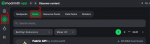
Step 4: Type in the search area "Simple Voice Chat". Once typed, you will see

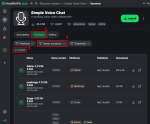
Step 5: Now Click on Simple Voice Chat and navigate to 'Versions' (1) Now you can select 'Game versions' (2) and install your desired game version. Note: If you also want Sounds Physics Remastered; you must use version 1.21.10
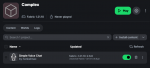
Step 6: Create an instance name and hit 'Create instance' You should be redirected to the instance page and it appears like below. You can now hit the Play button and play with the mod on Complex. Note: If you also want the optional mods, you can refer to Step 4 -> search for the optional mod -> 'Add to instance' -> Choose the instance you downloaded Simple Voice Chat to.
Step 1: Download Modrinth
https://modrinth.com/app
> More Download Options are for Mac/Linux
Step 2: Open the Modrinth App & Sign-in
Step 3: Navigate to 'Discover Content' (1) and then, Click on 'Mods' (2)
Step 4: Type in the search area "Simple Voice Chat". Once typed, you will see
Step 5: Now Click on Simple Voice Chat and navigate to 'Versions' (1) Now you can select 'Game versions' (2) and install your desired game version. Note: If you also want Sounds Physics Remastered; you must use version 1.21.10
Step 6: Create an instance name and hit 'Create instance' You should be redirected to the instance page and it appears like below. You can now hit the Play button and play with the mod on Complex. Note: If you also want the optional mods, you can refer to Step 4 -> search for the optional mod -> 'Add to instance' -> Choose the instance you downloaded Simple Voice Chat to.
Option 2: Curseforge Client
If you already have Curseforge Client installed -> Skip to Step 2
Step 1: Download Curseforge
https://www.curseforge.com/download/app
Step 2: Once installed, open Curseforge and select Minecraft (1), then type in the Search Bar (2) "Simple Voice Chat"

Step 3: Click Install and Create a new profile, then name the Profile anything you'd like.
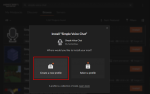
Step 4: You should now be able to hit the Play button and begin to login (if not already logged-in).
Note: if you want optional mods, you can add them now by repeating Step 2 but searching for Sounds Physics Remastered instead and when installing to 'Select a profile' and select the profile you made.
Step 1: Download Curseforge
https://www.curseforge.com/download/app
Step 2: Once installed, open Curseforge and select Minecraft (1), then type in the Search Bar (2) "Simple Voice Chat"
Step 3: Click Install and Create a new profile, then name the Profile anything you'd like.
Step 4: You should now be able to hit the Play button and begin to login (if not already logged-in).
Note: if you want optional mods, you can add them now by repeating Step 2 but searching for Sounds Physics Remastered instead and when installing to 'Select a profile' and select the profile you made.
Last edited: